Meta Muse on WhatsApp: How to Use It Without Downloading an App
How do you use Muse on WhatsApp? Short answer: besides the standalone app and the muse.ai web app, Muse also runs directly inside WhatsApp chat. No download, no storage used — open WhatsApp and it’s ready. For heavy WhatsApp users, this is the most convenient entry point.
This post covers three things: how the three entry points actually differ, how to add Muse inside WhatsApp, and what’s different feature-wise from the app.
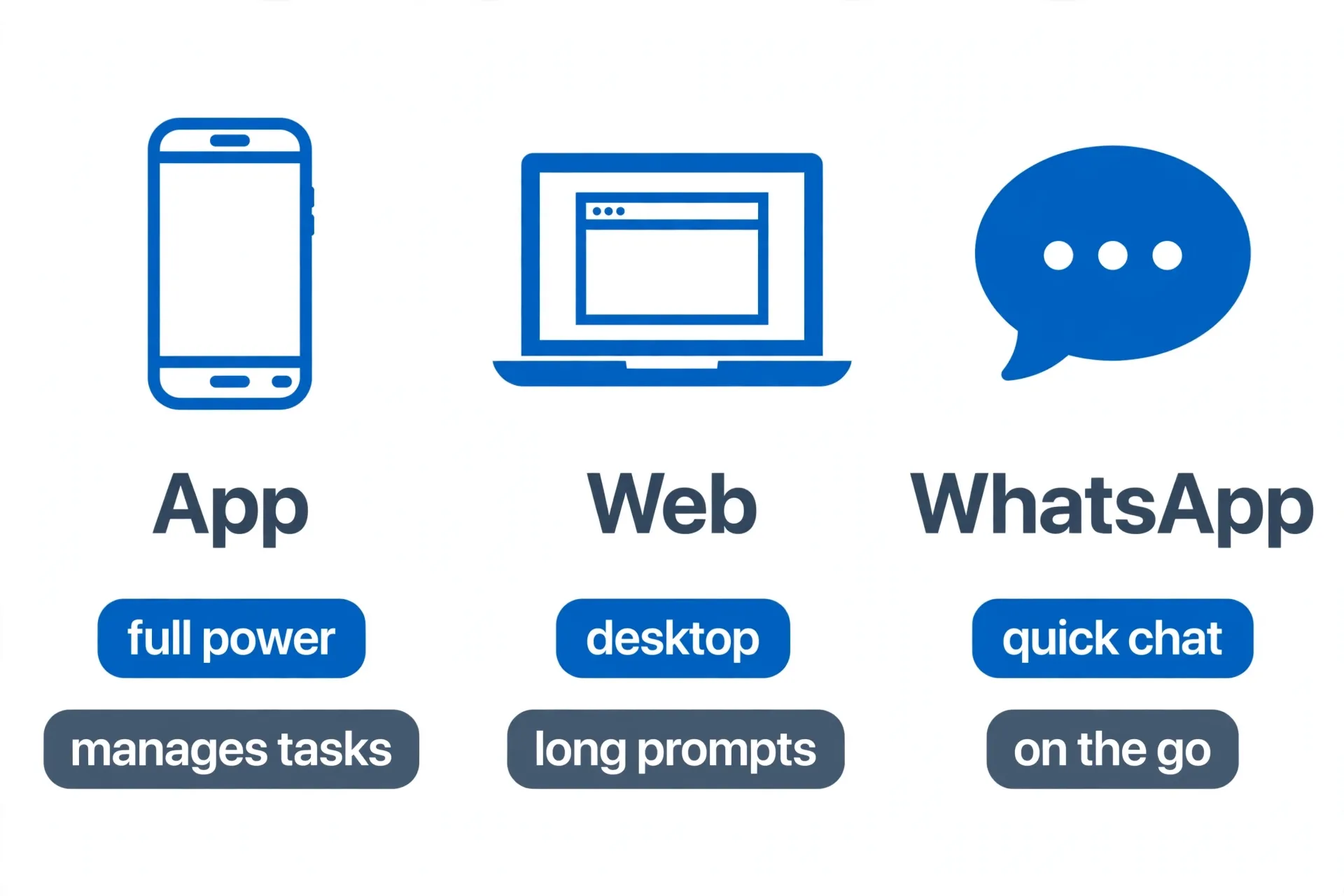
Comparing the three entry points: App, web, WhatsApp
| App | muse.ai web | ||
|---|---|---|---|
| Setup cost | Download and install | Just open a browser | Just open WhatsApp |
| Best for | Heavy use, managing long-running tasks | Refining long prompts at a desk | Quick questions, sending/receiving tasks, forwarding content |
| Images/files | Full | Full | Basic, good enough (varies by version) |
| Long-running task management | Most complete | Complete | Lightweight |
| Region | US-first | US-first | US-first |
Bottom line: the app is your main tool, the web is your study, WhatsApp is the pocket notepad. All three sit on the same Muse account — tasks and memory carry over. Something you tell it in WhatsApp, you can pick up and manage in the app.
Adding Muse inside WhatsApp
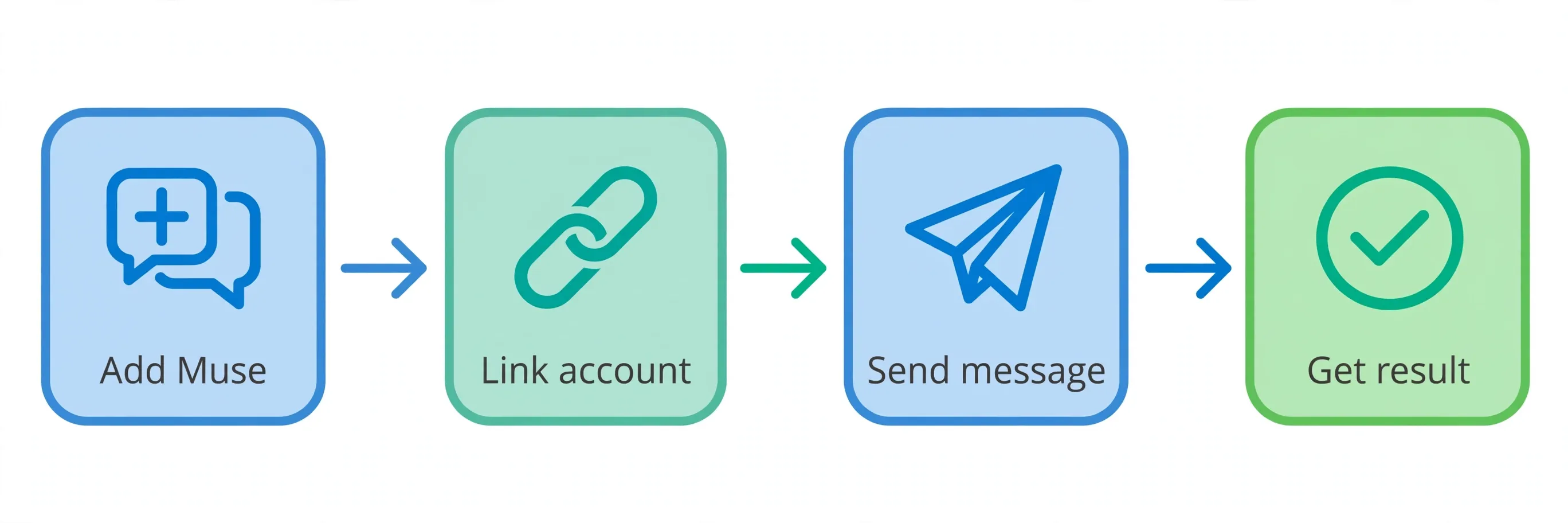
As of 2026-09-19, the WhatsApp entry point launched alongside Muse’s US rollout. Follow Meta’s official announcement for the exact steps; here’s the general flow, though details may shift between versions (pending verification — follow the actual prompts in your version):
- Make sure your WhatsApp is up to date and your account region is the US (Muse is currently US-only, 18+).
- Find the WhatsApp entry link through the muse.ai site or in-app guidance, and tap through to WhatsApp.
- This opens a conversation with Muse in WhatsApp; on first use, follow the prompts to link your account.
- Once linked, just send a message — e.g., “turn this recipe into a shopping list.”
If any step doesn’t match what you see, don’t force it — search for official guidance on muse.ai or in the app, or simply ask Muse itself “how do I add you on WhatsApp” and it’ll give you the current answer.
What Muse can do inside WhatsApp
Don’t underestimate this “lightweight” entry point — it handles high-frequency daily needs just fine:
- Quick tasks on the go: “Remind me to pay the electric bill at 3pm next Wednesday,” “keep an eye on this flight’s price.”
- Forward content for quick processing: see a recipe reel, forward it to Muse and say “turn this into a shopping list”; get a screenshot of an English email, send it and say “translate the key points.”
- Look things up: “Is this restaurant busy on weekends,” “compare these two vacuum cleaners for me.”
- Send and receive long-running task results: a long-running task you set up in the app (like an 8am daily news brief) can be received and followed up on directly in WhatsApp.
The core logic: WhatsApp handles “talking,” the app handles “managing.” For complex, multi-step tasks, the app still gives you a clearer view of execution.
How it differs from the app
Honestly, the WhatsApp version is currently a lighter version:
- Can do: Q&A, simple tasks, content conversion, receiving task results.
- Weaker at: showing the execution process of complex multi-step tasks, fine file editing, and granular management of long-running Goals — the app experience is better for these.
- Shared account and memory: no need to worry about “two Muses” — it’s the same one.
If you’re a light user, WhatsApp alone is plenty. Once you start having Muse handle complex tasks (booking, subscription management, automation), you’ll eventually install the app too.
First time using it? Try these 5 prompts
Don’t jump straight into a complex task the moment you add Muse. Use these five prompts first to get a feel for it:
- “Hi, introduce yourself and what you can do” — see its self-introduction and confirm the account link worked.
- “Translate this English text to [your language], focus on the key points” — attach a screenshot of an English email to test its “look at an image and act” capability.
- “Remind me to pay the electric bill at 3pm next Wednesday” — test tasks and reminders, see if it finds you on time.
- “Recommend three highly-rated restaurants near me that take reservations” — test web search plus a real-world booking action (this uses its agent capability).
- “Summarize what we just talked about” — test memory, see if it actually remembers the context.
After these five, you’ll have a feel for what this entry point can do and where its edges are. From there, layer on more: have it send you a daily news brief, watch a flight price for you — these long-running tasks are most comfortable to receive in WhatsApp, since your phone just buzzes when there’s an update.
Who should just use the WhatsApp version
- You’re already a heavy WhatsApp user and don’t want to install another app
- Your needs are mostly “ask things, translate, convert content, get reminders”
- Your phone storage is tight (not a joke — it’s a real reason)
Who eventually needs the app: anyone who wants Muse to book flights, manage subscriptions, or run multi-step automations, or developers who want to use the Muse Spark API. WhatsApp is the “try it out” install; the app is the “daily driver” — they don’t conflict.
Advanced: turn WhatsApp into your task inbox
Once you’re past the basics, the real killer use case for the WhatsApp version is receiving results:
- Daily morning brief: set it up once in the app (“send me a tech news brief every day at 8am”), then just receive it in WhatsApp every day — glance at it when you wake up.
- Price monitoring: “Tell me when these headphones drop below $200” — when the price drops, WhatsApp pops a message instead of you having to check manually.
- Backstop reminders: “Remind me every Friday afternoon to check next week’s schedule” — like having an assistant you don’t pay.
The logic runs in reverse: set up the complex configuration once in the app, do all your daily sending and receiving in WhatsApp. Your WhatsApp goes from “chat tool” to “task inbox” — that’s what makes this entry point genuinely valuable.
FAQ
Can I use Muse on WhatsApp outside the US? Honestly: unlikely. Muse is currently US-only, 18+, and the WhatsApp entry point follows the same regional restriction. Don’t trust “one-click workaround” claims.
Do I need to register separately for the WhatsApp version? No. It links to the same Muse account — memory and tasks carry over.
Is it safe to use Muse in WhatsApp — are my chats secure? Muse runs with Secure VM isolation and a Sentinel approval layer. That said: Reuters reported a data leak during internal testing, so privacy concerns are real and ongoing. Avoid sending sensitive information (full card numbers, SSNs) — a good rule for any AI assistant, not just this one.
Will the three entry points conflict with each other? No. A task you set up in WhatsApp is visible and manageable in the app, and vice versa.
Does the WhatsApp version cost money? It runs on the same tier system — the free tier gives roughly 100 million tokens per week (see our Muse free tier guide).
New to Muse? Start with the download & setup guide — iOS, Android, Mac, web, and WhatsApp compared, and why Windows still has no native app.
References
- muse.ai — Muse’s official site; the authority for the latest guidance on adding the WhatsApp entry point.
- WhatsApp — WhatsApp’s official site; entry-point availability depends on app version and account region.
- Reuters coverage (as relayed by edgen.tech) — supports the claim that Reuters reported a data leak during internal Muse testing, including reliability issues such as accessing private iCloud photos.
Don't just read it — run the first job this week
Subscribe and get a 7-day validation checklist.
Subscribe free